 Install, Configure, Forget! Install, Configure, Forget! |
|
|
Now that setup is complete using IISLogsGUI to configure
Click Start, Program Files, IISLogs, IISLogsGUI.exe
A Dialog will appear asking for the Config file
Select IISLogsdEXE.exe.config file
Click Open
The EasyConfig GUI will appear
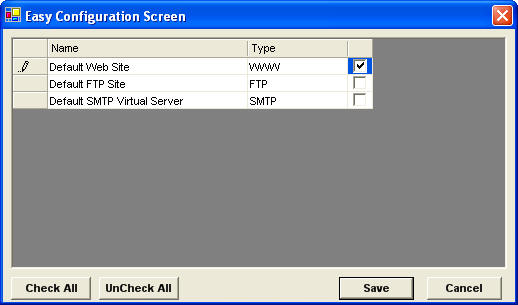
Click Select Individual Sites or Check All
Click Save
This will show the specific directories that will be monitored, if you want
to add additional sites click Easy Config Button again
Else
Click Next
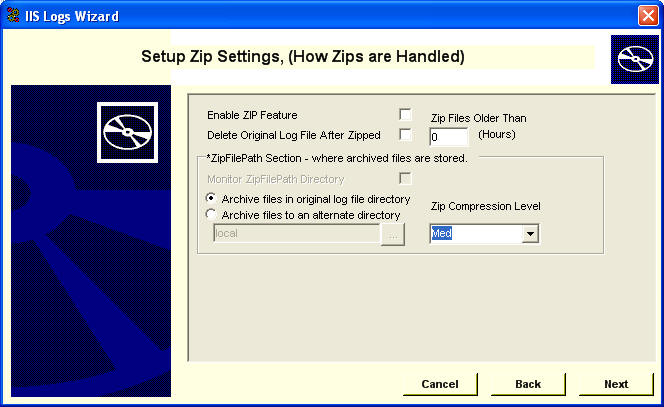
Select Enable ZIP Feature,
Optionally, Select Delete Original Log File After Zipped,
Fill in ZIP
Files Older Than (Hours) section, — Personally I use 168 (1 week).
If this is the first time configuring IISLogs to ZIP files, you’ll be
prompted to agree to the
ZIP Feature Policy Agreement. This is an explicit agreement the person
configuring
has tested IISLogs in a non-production environment or is in process of
testing. Also
verifying backups are available to insure critical Log Files are available, if
needed.
Notice the Delete Original File After Zipped, by default IISLogs doesn’t remove the
original log file
and ONLY creates a zip file. We strongly recommend you verify the zip
files are able
to be extracted and/or recovered before enabling delete original file.
Click Next
If you want to enable the one of the four delete options through out IISLOGS,
you’ll be
prompted to agree to the Delete File Policy Agreement. Enabling
anyone of these
delete options for the first time will prompt you. Once you’ve agreed,
you’ll not be
prompted again. For me, I enable the Enable Delete Feature first and
have it delete files
older than 10 weeks old. this will vary depending on your policies.
Select Enable Delete Feature option, you’ll be prompted to agree to the
Delete File Policy Agreement. Read, chose Accept and click OK.
You’ll not be prompted
again.
Select Enable Delete Feature,
Fill in Delete Retention Period (hours) — Personally I
put 1688
Click Next
File Naming Options
If you take the defaults, the ZIP files will be named exYYDDMM.zip
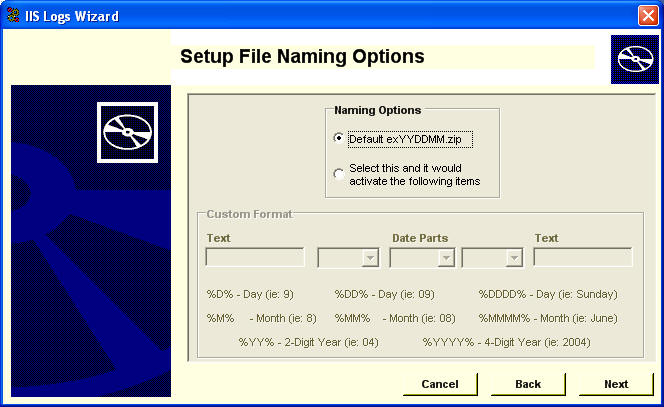
OR CUSTOM
The First and Last textbox is free-form text, these are
optional and will add text either in front and/or back of the file name, spaces
included.
Notice in dropdown textbox following items
%M% (Month in single digit),%MM% (Month in double digit),%MMMM%
(In word format)
%D% (Day in single digit),%DD% (Day in double digit),%DDDD%
(In word format)
%YY% (In two-digit year format), %YYYY% (In four year digit)
Select appropriate options
Click Next
This is a separate feature from IISLOGS, ONLY will DELETE files. This is feature to have the ability have some directories that are configured to zip and delete and others to have the option to JUST delete after a separate configurable delete parameter, just put a comma deleted list of directories to have their log files deleted separate from IISLogs core functionality I.E.(C:LogfileDir1,C:LogfileDir2,C:LogfileDir3) NO SPACES please.
Click Next
This feature ONLY will allow for monitoring the SMTP directories, normally under C:InetpubMailroot directory. This is a separate feature from IISLOGS and won’t ZIP files, files with extensions .BAD,.BDR,.BDP will ONLY be allowed to be deleted in the configured directories.
Select Mail Report, Note: the Mail User id and Mail Password fields are stored encrypted so they aren’t clear text in the config file.
Click Next
If your using the Stand-Alone EXE version, just skip over this
section.
Select Next
ServiceInterval – This setting is ONLY used if your using the
Windows Service version of IISLogs –
This setting can be configured to allow IISLogs service component to run multiple times. The default is 3 AM,
if your going to add more than one time to run the IISLogs process, Here is an example of how to enter multiple
entries either using the IISLogs configuration GUI or favorite text editor.
Click Next
Click Finished
IISLogsGUI configuration utility will appear, this will have all the settings
configured in the Wizard.
Review all settings.
To Launch IISLogsd Stand-Alone EXE
Select Click the Wizard or select in Program Files.
Optionally you can schedule IISLogsd.exe in using Windows Task Scheduler, a 3rd party scheduler to run on a timed basis.
OR
If your using Windows Service Version, open the Services applet in the control panel and start IISLogs Service
Enjoy,
Any questions, please email us at [email protected]
IISLogs Team.
REM -- get the data from the database
Dim sqlText as String = "exec s_res_whats_new"
Dim dbRead as SqlDataReader = GetDataReader( sqlText )
REM -- create the datatable
Dim ds as DataSet = New DataSet("NewResources")
Dim dt as DataTable = ds.Tables.Add("ResourceList")
Dim dr as DataRow
while dbRead.Read()
DateUpdated = DateTime.Parse(dbRead.Item("res_dateupdated").ToString())
ResourceName = dbRead.Item("res_name").ToString()
ResourceUrl = dbRead.Item("res_url").ToString()
ResourcePk = dbRead.item("res_pk").ToString()
ResourceDomain = ""
If len(ResourceUrl)>PROT_PRFX_LEN then
REM -- Strip off 'http://' and remove everything after .com, .net, or .org, or less than 25 characters UrlWhatsNew = ResourceUrl & "/"
ResourceDomain = LCASE(Left(Mid(UrlWhatsNew, PROT_PRFX_LEN ,Instr(PROT_PRFX_LEN,UrlWhatsNew,"/")-PROT_PRFX_LEN),MAX_DOMAIN_LEN))
End if
ResourceDate = DateUpdated.ToShortDateString()
ResourceUrl = "http://www.123aspx.com/resdetail.asp?rid=" & ResourcePk
REM -- Add to DataSet ds
dr = dt.NewRow()
dr("URL") = ResourceUrl
dr("DateUpdated") = ResourceDate
dr("Domain") = ResourceDomain
dr("Name") = ResourceName
dt.Rows.Add(dr)
End While
ASP.NET returns a webservice in the form of the industry strandard, WSDL protocol. WSDL is an XML document that will tell the consumer what methods are available to be called, and can be considered a type of API. We can now test our webservice by clicking the Invoke button. Here is a screen shot of the first 3 rows of data that will be sent to the consumer.